
Bridging the Bank Feed Gap: Importing Historical Statements to QuickBooks and Xero
Quick Answer
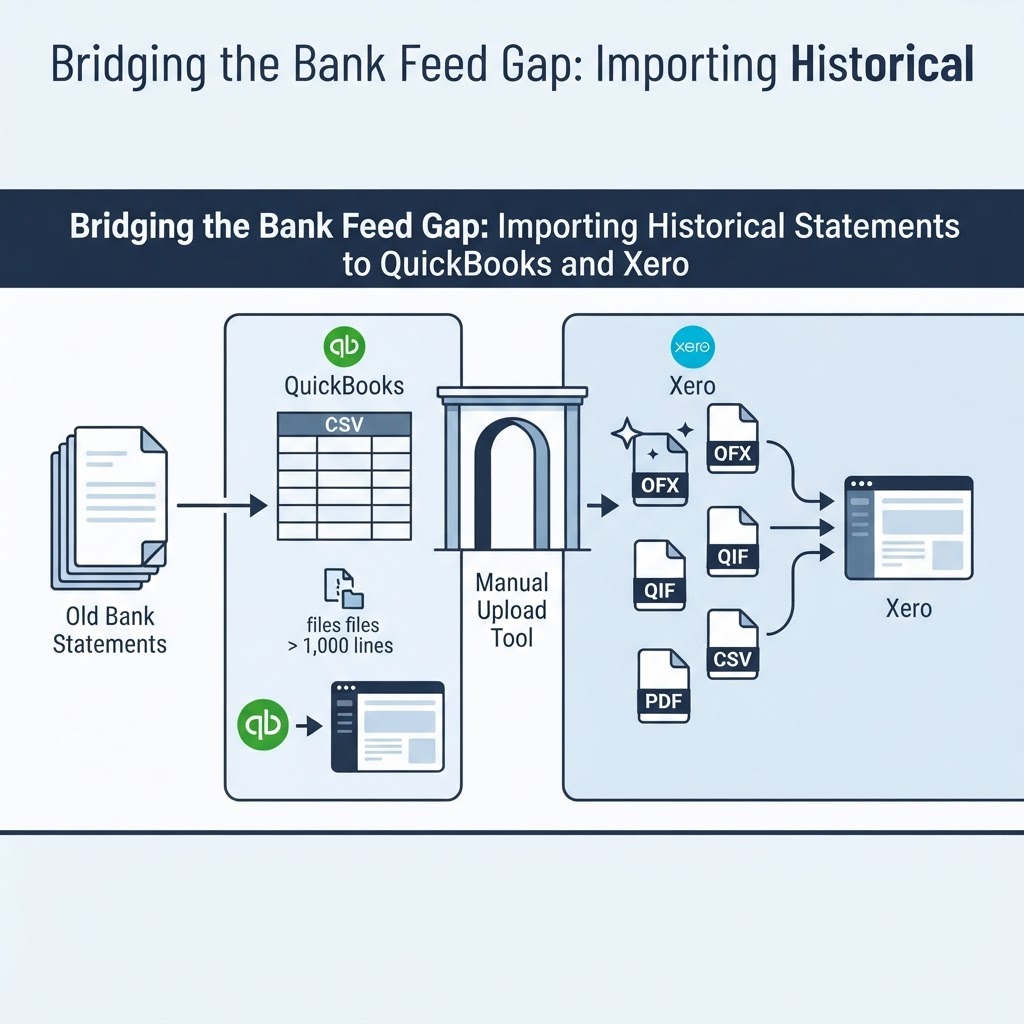
To import old bank statements into QuickBooks Online, convert them into a CSV file using either the 3-column (Date, Description, Amount) or 4-column (Date, Description, Credit, Debit) layout QuickBooks requires, then upload it through the manual upload tool, splitting files that exceed 1,000 lines. Xero accepts a wider range of formats for manual imports — OFX, QFX, QIF, PDF, and CSV — and recommends OFX because it doesn't require reformatting the bank's original export. Both platforms are built around a live bank feed, not a historical archive, so filling gaps older than the feed's reach almost always requires a manual file upload rather than waiting for the feed to catch up.
The Historical Gap: Why Bank Feeds Don't Go Back Far Enough
If you've ever reconnected a bank feed in QuickBooks Online or Xero and found a wall of missing months staring back at you, you already know the problem. Bank feeds are built to deliver a rolling window of recent activity, not a permanent record of everything that happened in an account. When a feed breaks — because a bank changes its login flow, a security token expires, or a connection simply times out — reconnecting it typically picks up new activity going forward. It does not automatically backfill the gap that opened up while the connection was down.
This creates what we'll call the historical gap: the stretch of transactions that exist in your bank's records and on your PDF statements, but not inside your accounting software. It shows up constantly in a few predictable situations:
- Onboarding a new bookkeeping client whose books need to reflect the last 12–24 months, not just what the feed happens to cover.
- Applying for a loan or credit line where the lender wants a full year of transaction history inside the accounting file, not just bank PDFs.
- Reconciling year-end books after a feed outage left three or four months unaccounted for.
- Switching accounting platforms and needing to carry forward historical transactions that the new feed can't reach.
The default response — opening each PDF statement and typing transactions into QuickBooks or Xero by hand — works, but it's slow and invites transposition errors, especially across statements with hundreds of lines. The faster path is to treat the PDF statement as a data source you convert into a file format your accounting software already knows how to import.
Preparing Your Data: Converting PDF Statements to Structured CSV
A PDF bank statement is formatted for a human to read, not for software to parse. Dates, descriptions, and amounts are laid out in a visual table, but there's no underlying structure a program can reliably extract without some kind of parsing step. That's the core obstacle between "I have the PDF" and "I have a file QuickBooks or Xero will accept."
There are two ways to close that gap:
- Manual transcription. Open the PDF, read each line, and type it into a spreadsheet with columns for date, description, and amount. This works for a single-page statement with a dozen transactions. It becomes impractical fast once you're dealing with a year of statements across multiple accounts.
- Automated extraction. Use a tool that reads the PDF (or a scanned image of a statement) and outputs the transaction data as structured CSV or JSON, ready to reformat for your accounting software.
This is the specific problem Statement Flow is built around: it converts bank-statement PDFs and images into structured CSV or JSON data using AI-powered OCR and extraction, and can export that data into supported accounting workflows (Bank Statement Converter). Because the extraction is AI-driven rather than template-matched, it can handle statements from different banks without you building a separate parsing rule for each one. The platform also includes validation checks — opening and closing balance checks, credit and debit totals, balance variance checks, and flagging of low-confidence transactions — so you can review questionable line items before they ever reach your accounting file (AI Data Extraction).
Whichever method you use, the output needs to land in a very specific shape before QuickBooks Online or Xero will accept it. That shape differs between the two platforms, and getting it wrong is the single most common reason imports fail.
QuickBooks Online Import Requirements: 3-Column vs 4-Column Layouts
QuickBooks Online supports manual uploads of .csv, .qbo, .ofx, .qfx, and .txt files (Intuit). For bookkeepers converting PDF statements, CSV is usually the practical choice because it's the format most extraction tools and spreadsheets can produce directly.
QuickBooks Online CSV files must follow one of two layouts (Intuit):
- 3-column layout: Date, Description, Amount. A single Amount column carries both debits and credits, distinguished by sign (for example, a negative number for a withdrawal and a positive number for a deposit).
- 4-column layout: Date, Description, Credit, Debit. Deposits and withdrawals are split into separate columns, so there's no reliance on a plus or minus sign to tell them apart.
Illustrative example: say you're rebuilding six months of history for a client whose feed broke in March. A 4-column row for a single transaction might look like this once extracted and reformatted:
Date,Description,Credit,Debit
03/14/2026,Office Supply Co Invoice 4471,,86.25
03/15/2026,Client Payment - Acme LLC,1200.00,
If your extraction tool instead gives you a single combined Amount column, you'd use the 3-column layout and represent the same two lines as 03/14/2026,Office Supply Co Invoice 4471,-86.25 and 03/15/2026,Client Payment - Acme LLC,1200.00. Mixing the two layouts in one file — some rows with a Credit/Debit split, others with a single signed Amount — is a common source of rejected uploads.
One more limit matters for historical backfills specifically: QuickBooks Online manual transaction uploads are limited to 1,000 lines per file (Intuit). A year of statements for an active business account can easily exceed that. The practical fix is to split the historical period into smaller batches — by quarter or by statement month — and upload them in chronological order so running balances stay coherent.
Xero Import Requirements: File Formats and Sign Conventions
Xero takes a broader view of acceptable formats. Manual bank statement imports in Xero support OFX, QFX, QIF, PDF, and CSV files (Xero). That flexibility is useful if your bank (or your extraction tool) naturally produces one of the structured formats rather than a plain CSV.
Xero specifically recommends using OFX files for manual imports, because an OFX file can be imported without modifying the bank's original export file (Xero). CSV remains a valid option, but it generally requires more manual setup — mapping columns correctly and making sure amounts are consistently signed — since a CSV doesn't carry the same built-in structure an OFX or QFX file does.
A detail worth knowing before you backfill overlapping periods: Xero automatically excludes duplicate transactions during import if they've already been imported in another file (Xero). That matters in practice because historical backfills often overlap slightly with what a live feed has already pulled in — for example, if the feed reconnected partway through a month you're also uploading manually. Xero's duplicate detection is the safety net that keeps you from double-counting those transactions, rather than something you need to painstakingly check line by line.
Troubleshooting Matrix: Common Import Errors and Their Fixes
The fastest way to lose an afternoon is to keep re-uploading the same malformed file and hoping it works the second time. Here's a working matrix for diagnosing the most common failure points in QuickBooks Online and Xero imports, mapped to their documented root causes.
QuickBooks Online
-
Error: file rejected for incorrect column structure or "column mismatch" type message. Root cause: the CSV doesn't match either the 3-column (Date, Description, Amount) or 4-column (Date, Description, Credit, Debit) layout QuickBooks expects (Intuit). Fix: rebuild the file using exactly one of the two layouts. Don't mix a signed Amount column with separate Credit/Debit columns in the same file.
-
Error: upload fails or stalls on a large historical file. Root cause: the file exceeds the 1,000-line manual upload limit (Intuit). Fix: split the historical range into smaller files — monthly or quarterly — and upload them in date order so opening balances carry through correctly.
-
Error: file type not recognized at upload. Root cause: the file extension doesn't match one of the supported manual upload types — .csv, .qbo, .ofx, .qfx, or .txt (Intuit). Fix: confirm the actual file extension (not just the icon or filename), and re-export or re-save the file in a supported format if it was produced by an unrelated tool.
Xero
-
Error: CSV import produces incorrect amounts or transactions in the wrong direction. Root cause: CSV files don't carry built-in structure the way OFX or QFX files do, so sign conventions and column order have to be set correctly by hand. Fix: where possible, use OFX or QFX instead, since Xero recommends OFX specifically because it imports without needing the bank's original export modified (Xero). If you must use CSV, double-check that debit and credit amounts are signed consistently with how Xero expects them before uploading.
-
Concern: worried a historical backfill will double-count transactions the feed already caught. Root cause: overlap between a manually imported period and transactions the live feed already pulled in. Fix: this is largely self-correcting — Xero automatically excludes duplicate transactions that have already been imported in another file (Xero), so overlapping date ranges are safer to import than they might seem, though it's still worth a quick reconciliation check afterward.
-
Error: unsupported file type at upload. Root cause: the file isn't one of Xero's supported manual import formats — OFX, QFX, QIF, PDF, or CSV (Xero). Fix: convert the source file into one of those five formats before attempting the import again.
Security Best Practices for Handling Financial Data During Import
Historical statement backfills usually mean handling months of sensitive transaction data outside your normal, live bank-feed pipeline — often as loose PDF or CSV files sitting in email, a downloads folder, or a shared drive while you work through the conversion and upload steps. A few habits reduce the exposure:
- Avoid emailing raw statement PDFs or extracted CSVs as unprotected attachments; use a secure file-sharing method instead.
- Delete local copies of converted CSV or JSON files once the import is confirmed and reconciled.
- Limit who on your team has access to the folder or tool where conversions happen, especially for client files in a bookkeeping or accounting practice.
- Review the security documentation of any tool you use to convert or store statement data before relying on it for client work (Security).
A Practical Checklist for Closing a Historical Gap
- Identify the exact gap: the last date your bank feed has clean data, and the date you need history to start from.
- Gather the PDF statements (or images) covering that gap.
- Convert them into structured transaction data — date, description, amount — using an extraction tool or manual transcription for short gaps.
- Reformat the extracted data into the layout your platform requires: QuickBooks Online's 3-column or 4-column CSV, or one of Xero's supported formats, with OFX preferred where available.
- Split files that exceed QuickBooks Online's 1,000-line manual upload limit into smaller, chronological batches.
- Upload in date order, oldest first, so running balances stay logical.
- After each upload, check that the closing balance of the imported batch matches the opening balance of the next period — this catches missed or duplicated lines before they complicate reconciliation.
For the conversion step specifically, Statement Flow extracts transaction data from PDF and image bank statements and exports it as CSV or JSON, with built-in checks on opening and closing balances and flags on low-confidence line items before you reformat for QuickBooks Online or Xero (AI Document Parser, QuickBooks Integration, Xero Integration).
Frequently Asked Questions
How do I import bank statements when the feed is broken or missing history?
Convert the PDF statements covering the missing period into a CSV file formatted for your accounting platform, then upload it manually rather than waiting for the live feed to backfill — bank feeds typically do not retroactively pull in transactions from before a reconnection. For QuickBooks Online, use the 3-column (Date, Description, Amount) or 4-column (Date, Description, Credit, Debit) layout and keep files under 1,000 lines. For Xero, OFX, QFX, QIF, PDF, or CSV are all accepted, with OFX recommended because it requires no reformatting of the bank's original export.
Can I convert a PDF bank statement into a Xero-compatible CSV?
Yes. You need to extract the transaction data (date, description, amount) from the PDF into a structured format, then save it as a CSV with consistent column order and sign conventions. Xero accepts CSV for manual imports, though it also accepts OFX, QFX, QIF, and PDF, and recommends OFX specifically because it avoids the manual reformatting that CSV sometimes requires.
What are the specific CSV column requirements for QuickBooks Online?
QuickBooks Online requires CSV files to follow either a 3-column layout (Date, Description, Amount) with a single signed amount column, or a 4-column layout (Date, Description, Credit, Debit) with separate columns for money in and money out. Files also have to stay within the 1,000-line manual upload limit.
What are the most common causes of import failures in QuickBooks Online and Xero?
For QuickBooks Online, the most common causes are a CSV that doesn't match the required 3-column or 4-column layout, a file that exceeds the 1,000-line upload limit, or a file extension outside the supported types (.csv, .qbo, .ofx, .qfx, .txt). For Xero, failures usually trace back to CSV formatting issues like inconsistent sign conventions, or using a file format outside the five Xero supports for manual import: OFX, QFX, QIF, PDF, and CSV.
Sources
Related on StatementFlow
This article was produced by StatementFlow's AI-assisted editorial workflow and reviewed against sourced evidence and verified product documentation before publication.