
The 2026 Guide to Importing Scanned Bank Statements into Sage
Quick Answer
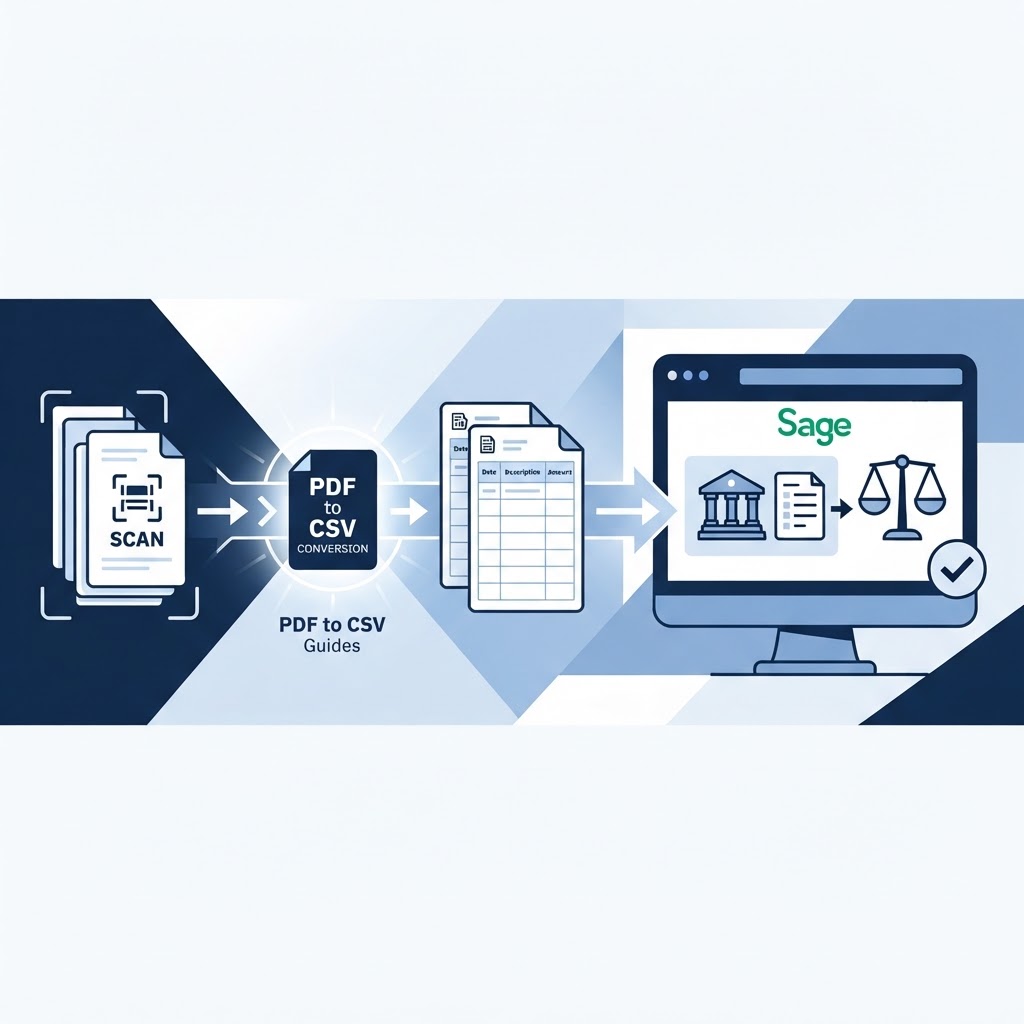
No — Sage does not accept scanned PDF bank statements as a direct import. You must first convert the PDF into a supported file format, most commonly CSV, with columns for Date, Description, and Amount (payments out as negative values). Once converted, the file can be imported through Sage's bank statement import or Bank Feeds tool, matched to the correct account, and reconciled against your existing transactions.
Why This Trips Up So Many Bookkeepers
You've got a stack of scanned bank statements — maybe emailed over by a client, maybe downloaded from a bank portal that only offers PDF exports — and a Sage ledger that needs updating before month-end close. You open Sage, look for an import button, select your PDF, and nothing happens. Or worse, Sage accepts the file but the resulting transaction list is garbled.
This isn't a bug. It's a format mismatch, and it's one of the most common reasons bookkeepers end up manually retyping transactions line by line. Understanding exactly which formats Sage will accept — and the conversion step that sits between a scanned statement and a usable file — saves hours of repetitive data entry.
Understanding Sage's Supported Import Formats
Sage Accounting supports several file formats for bank statement imports, including CSV, OFX, QIF, ASO, BAI2, CAMT053, XLS, and XLSX, according to Sage's own knowledge base. A PDF is conspicuously absent from that list.
A quick glossary, since the acronyms matter for troubleshooting later:
- CSV (Comma-Separated Values): a plain-text file where each transaction is a row and each field (date, description, amount) is separated by commas. The most common format for manual bank exports and the most common target for PDF conversion.
- OFX (Open Financial Exchange): a structured financial data format originally built for data exchange between banks and accounting software. It carries more metadata than CSV and is often the preferred format when a bank offers it.
- QIF (Quicken Interchange Format): an older financial file format, still accepted by some Sage products for historical compatibility.
- Bank Feeds: Sage's automated connection to a bank, which pulls transactions directly without any file import at all. Not every bank or Sage product supports Bank Feeds for every account type.
- Transaction Matching: the step after import where Sage compares incoming transactions against existing ledger entries to avoid duplicates.
Which of these formats actually works depends on which Sage product you're running — Sage Accounting, Sage 50, or another variant — which is exactly why a decision tree is more useful here than a single generic instruction list.
The PDF Limitation: Why Direct Import Fails
Sage does not support the direct import of PDF bank statements, as confirmed by Invoicedataextraction.com's breakdown of the Sage import process. A PDF is a layout format — it tells a screen or printer how to display text visually, not how to structure that text into discrete, machine-readable fields like date, description, and amount. A CSV or OFX file, by contrast, is already organized into those fields.
When a bank statement is only available in PDF form, Sage's own guidance is to use a conversion tool to produce a CSV file before attempting the import, as outlined in Sage's guide to importing transactions when a bank feed isn't available. That conversion step — turning an unstructured PDF or scanned image into structured rows and columns — is the entire bottleneck this guide is built around.
It's also worth knowing what Sage explicitly excludes regardless of format. Sage Accounting does not support file imports for Cash in Hand, Loan, Other, or foreign currency accounts, per Sage's import documentation. If your statement covers one of those account types, no amount of reformatting will unlock a direct import — those balances need to be entered or adjusted manually.
Decision Tree: Which Sage Import Path Do You Need?
Rather than treating every Sage situation the same way, work through this sequence. Each branch leads to a specific, correct next action.
1. What Sage product are you using?
- If you're on Sage Accounting (cloud) → go to question 2.
- If you're on Sage 50 → go to question 3.
- If you're unsure which product you have → check your login screen or subscription confirmation email; the product name is usually in the title bar or the welcome email subject line.
2. (Sage Accounting) Is your bank connected via Bank Feeds?
- If yes, and the account is a standard currency, non-loan, non-cash account → let Bank Feeds pull transactions automatically. No file import needed.
- If no, or the account type is excluded from feeds → you need a file import. Go to question 4.
3. (Sage 50) Which import method does your setup support?
- Sage 50 allows importing bank statements via Bank Feeds, Bank Services, or manual import depending on version and setup, according to Sage's Bank Feeds import guide.
- If Bank Feeds or Bank Services is available and connected → use it; no file conversion needed.
- If neither is available, or the bank isn't supported → go to question 4.
4. What format is your statement currently in?
- If it's already a CSV, OFX, QIF, XLS/XLSX, BAI2, ASO, or CAMT053 file from your bank → skip conversion and go straight to the step-by-step import section below.
- If it's a PDF or a scanned image → you need a conversion step first. Go to question 5.
5. Is the PDF a digital export (text-based) or a scanned image?
- If it's a digital PDF (text can be selected and copied) → a conversion tool can usually extract the transaction table directly into CSV.
- If it's a scanned image or photographed statement → you need a conversion tool that uses OCR (optical character recognition) to read the text from the image before it can produce a CSV. This is the harder case, and it's where manual retyping most often happens by default.
Either way, the destination is the same: a clean CSV file with Date, Description, and Amount columns, ready for Sage's import screen.
Workflow: Converting Scanned Statements to Sage-Ready Formats
Once the decision tree lands you on "I need to convert a PDF or scanned image," the practical workflow looks like this:
- Gather the source files. Collect the PDF or image files for the statement period you need. If you have multiple months, keep them as separate files — this makes troubleshooting easier if one month imports cleanly and another doesn't.
- Run the file through a conversion tool. The tool needs to read the transaction table — date, description, amount, and running or closing balance — and output it as rows in a CSV file. For scanned images, this requires OCR rather than simple text extraction.
- Check the output before importing anything. Open the CSV and scan for: missing rows, dates in the wrong format, amounts that lost a decimal point, or descriptions that got truncated. This review step is not optional — catching an error here takes two minutes; catching it after it's posted to your ledger can take an afternoon.
- Confirm the sign convention. Sage requires payments out to be represented as negative values in a CSV import, per Sage's file format documentation. Some conversion tools default to showing all amounts as positive with a separate debit/credit column — if yours does, you'll need to adjust it before Sage will interpret the file correctly.
- Save the cleaned file in a format Sage will accept — CSV is the safest universal choice across Sage products.
Statement Flow is one option for the conversion step in this workflow: it converts bank-statement PDFs and images into structured CSV or JSON data using AI-powered OCR and extraction, with built-in checks for opening and closing balances and low-confidence transaction flags so you can catch extraction errors before they reach Sage. You can review more on the Bank Statement OCR page or see the end-to-end process on the Bank Statement Converter page.
Step-by-Step: Importing CSV/OFX Files into Sage
Once you have a correctly formatted CSV or OFX file, the Sage-side steps are:
- Open the relevant bank account in your Sage product's banking module.
- Select the import option (sometimes labeled "Import Statement" or "Upload File," depending on product version).
- Choose the file you converted or exported.
- Map the columns. Sage needs to know which column is the date, which is the description, and which is the amount. If your CSV headers already match Sage's expected labels, this step may be automatic; if not, you'll map them manually.
- Preview the transactions. Most Sage import screens show a preview before committing. Check a handful of rows against your original statement.
- Confirm the import. Sage will add the transactions to the account's unreconciled list.
- Run transaction matching. Sage compares the imported rows against existing entries to flag likely duplicates before you post anything twice.
- Reconcile. Compare the imported closing balance against your actual bank statement closing balance for the period. Any variance means something in the import — a missed row, a sign error, a duplicate — needs attention before you close the period.
Worked Example (Illustrative)
Say a bookkeeper receives a scanned PDF statement covering March transactions for a small retail client. The statement has 42 transactions, including six card payments, three supplier payments, and one bank fee.
After conversion, the CSV shows 42 rows — but two of the supplier payments appear as positive numbers instead of negative. Following the troubleshooting habit above, the bookkeeper catches this during the pre-import review, flips the sign on those two rows, and re-saves the file. The import then proceeds cleanly, and the closing balance in Sage matches the statement's stated closing balance exactly. This is illustrative only — your own statement layout, bank, and Sage version may behave differently — but it demonstrates why the "check the output before importing" step in the workflow above isn't optional.
Troubleshooting Common Import Errors
Why does Sage reject my CSV with a date error?
Sage expects dates in a specific format tied to your regional settings (commonly DD/MM/YYYY or MM/DD/YYYY depending on locale). If your converted CSV uses a different date format than Sage expects, the import will either fail outright or — more dangerously — succeed with every date read incorrectly. Always check a sample of dates against the original statement after import, not just before.
Why are my columns mapped incorrectly?
If your CSV headers don't exactly match what Sage expects (for example, "Transaction Date" instead of "Date"), the auto-mapping may assign the wrong column to the wrong field. Rename headers to match Sage's expected labels before import, or manually remap during the import preview screen.
Why do I have duplicate transactions after import?
This usually happens when a statement period overlaps a previous import, or when transaction matching doesn't recognize a transaction as a duplicate because the description text differs slightly from a previously imported row. Review the unreconciled list after each import and manually merge or delete duplicates before reconciling.
Why doesn't my balance reconcile after import?
A balance mismatch usually traces back to one of three causes: a missing row (often the first or last transaction on a page, lost during OCR or conversion), a sign error on one or more rows, or a transaction that was imported twice. Work backward from the variance amount — if it matches a specific transaction's value, that's usually the culprit.
A Practical Pre-Import Checklist
- Confirm which Sage product and import method applies to your account (feed, file import, or manual).
- Confirm the account type is eligible for file import — loan, cash-in-hand, and foreign currency accounts are excluded.
- Convert PDFs or scanned images to CSV before attempting any import.
- Verify column headers match Sage's expected Date, Description, Amount structure.
- Confirm payments out are negative values.
- Spot-check at least five transactions against the original statement.
- Preview the import inside Sage before confirming it.
- Reconcile the closing balance immediately after import, not days later.
Where This Fits in a Bookkeeping Workflow
For firms handling statements from multiple clients and multiple banks, the conversion step is often the real time cost — not the Sage import itself. Tools built specifically for extracting transactions from scanned or PDF statements, with validation checks like opening/closing balance comparisons, reduce the manual review burden described in the troubleshooting section above. Statement Flow's extraction output can be exported as CSV for a Sage-style import or sent to Excel for further review before that import happens. For firms also running reconciliation across multiple accounts, the Bank Statement Reconciliation page covers that adjacent step in more detail, and bookkeeping-specific workflow notes are on the For Bookkeepers page.
Frequently Asked Questions
Can I import scanned PDF bank statements directly into Sage?
No. Sage does not support direct import of PDF bank statements, scanned or digital. You need to convert the PDF into a supported format — typically CSV — before Sage's import tool will accept it.
What file formats does Sage support for bank statement imports?
Sage Accounting supports CSV, OFX, QIF, ASO, BAI2, CAMT053, XLS, and XLSX for bank statement imports, according to Sage's own knowledge base. Which formats are available to you depends on your specific Sage product and account type.
How do I convert a PDF bank statement into a format Sage accepts?
Use a conversion tool to extract the transaction table from the PDF or scanned image into a CSV file with Date, Description, and Amount columns. Payments out must be represented as negative values. Review the output against the original statement before importing it into Sage.
What are the most common pitfalls when importing CSV files into Sage?
The most common issues are mismatched date formats, column headers that don't match Sage's expected labels, payments-out values entered as positive instead of negative, and duplicate transactions from overlapping import periods. Checking the file before import and reconciling the closing balance after import catches most of these.
Sources
- How to Convert PDF Bank Statements for Sage — Invoicedataextraction.com
- How to import bank statements — Sage
- Supported file formats for bank statement imports - Sage KB — Sage
- How to import a list of transactions using Bank Feeds — Sage
- Import bank transactions when your bank feed isn't available — Sage
Related on StatementFlow
This article was produced by StatementFlow's AI-assisted editorial workflow and reviewed against sourced evidence and verified product documentation before publication.