
Closing the Pre-Processing Gap: Preparing Bank Statement Data for QBO and Xero AI Workflows
Quick Answer
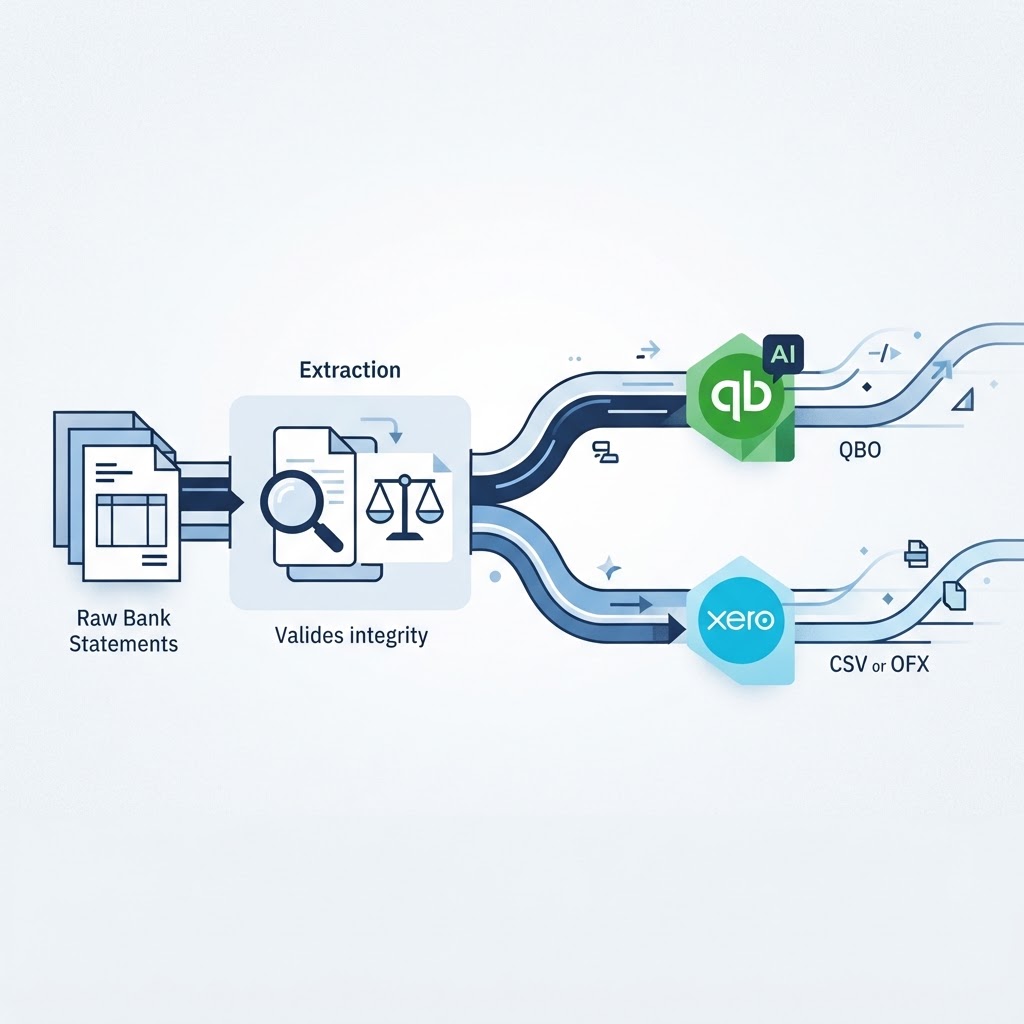
QuickBooks Online lets you manually upload bank statement PDFs or images and will attempt AI extraction, but Xero does not support direct PDF import at all — it requires OFX, QFX, QuickBooks, or CSV files. The practical fix is to pre-process statements with a dedicated extraction tool that outputs clean CSV or JSON, validates the data against the statement's own balances, and then hands that file to QuickBooks or Xero in the format each platform actually accepts.
The Automation Gap: Why Ledger AI Fails on Raw PDFs
Every bookkeeper has hit the same wall during month-end close: a client emails a zip file of bank statement PDFs, and the "automated" bank feed rules in QuickBooks or Xero simply don't apply. The rules exist to categorize transactions once they're inside the ledger as rows with a date, description, and amount. A PDF is not that. It's a page layout — text, lines, logos, and sometimes a scanned image — with no guarantee that the software can reliably locate the right numbers in the right columns.
This is the core distinction between upstream pre-processing and downstream ledger automation. Downstream automation — bank rules, auto-categorization, reconciliation matching — operates on structured, row-based data that already lives inside the accounting platform. Upstream pre-processing is everything that happens before that: turning an unstructured document (a PDF or a photographed statement) into the structured rows the ledger software expects. Skip the upstream step, or do it badly, and the downstream automation has nothing reliable to work with. That's why firms end up retyping transactions by hand even though they've paid for tools that promise automation.
Why Bank-Grade PDFs Aren't Ledger-Ready
A bank-issued PDF statement is designed to be read by a human, not parsed by software. Column headers vary by bank. Running balances sit next to transaction amounts. Multi-line descriptions wrap unpredictably. None of this breaks a human reader, but it breaks a parser that expects a fixed structure — which is exactly what general ledger software expects once data lands inside it.
Platform Requirements: QuickBooks Online vs. Xero Import Capabilities
The two platforms most accounting and bookkeeping teams use handle this problem very differently, and knowing the difference changes how you build your workflow.
How do I feed bank statement PDFs into QuickBooks AI workflows?
QuickBooks Online supports manually uploading bank statements as PDF or image files, and the platform applies its own AI extraction to that upload, according to Intuit's documentation. That's useful when you have a single clean statement from a well-supported bank. It becomes less reliable at firm scale, when you're processing statements from dozens of clients and multiple banks with inconsistent formatting, scan quality, or multi-page layouts. QuickBooks also accepts manual CSV import, but only in one of two fixed layouts: a 3-column format (Date, Description, Amount) or a 4-column format (Date, Description, Credit, Debit), as specified in Intuit's CSV formatting guide. If your extracted data doesn't match one of those two column structures exactly, the import will fail or misalign.
Why are my automated rules failing on imported statements?
Bank rules in QuickBooks and Xero match on patterns in the description and amount fields. If your upstream extraction step produces inconsistent descriptions — truncated text, merged lines, or a date format the ledger doesn't recognize — the rule simply won't fire, and the transaction lands in a review queue instead of being auto-categorized. This is rarely a flaw in the rule itself. It's usually a symptom of inconsistent upstream data: the same transaction type extracted two different ways across two different statements will not match the same rule reliably.
How can I convert PDF statements for Xero without manual keying?
Xero does not support direct import of PDF bank statements at all. Per Xero's own support documentation, manual imports must be in OFX, QFX, QuickBooks, or CSV format — confirmed in Xero's import guide. There is no native path from a raw PDF into Xero. Xero's Hubdoc feature can extract data from digital bank statement PDFs, but Xero has stated that this feature is built for digital PDFs downloaded directly from a bank portal and does not support photos or scans of paper statements. If a client hands you a scanned or photographed statement, Hubdoc's extraction path isn't designed to handle it. That gap is exactly where a separate pre-processing step becomes necessary — converting the PDF or image into a CSV file that Xero's manual import will actually accept.
One more constraint worth planning around: Xero's manual bank statement import is capped at 1,000 transactions per file, and larger statements need to be split into smaller batches, per Xero's troubleshooting documentation. For a business account with a year of history, that limit arrives faster than you'd expect.
The Pre-processing Workflow: From PDF Extraction to Ledger Import
A reliable workflow separates extraction from import, and treats each as its own checkpoint:
- Collect the source document — PDF or image — from the client or bank portal.
- Extract transactions (date, description, amount) using OCR and AI-based parsing designed for financial documents. Statement Flow performs this step by converting bank-statement PDFs and images into structured CSV or JSON data using AI-powered OCR and extraction.
- Validate the extracted data against the statement's own totals — opening balance, closing balance, and the sum of credits and debits — before trusting any row of it.
- Correct any transactions flagged as low-confidence or mismatched, by comparing them against the original document.
- Export the validated data in the exact format your ledger platform requires: QuickBooks' 3- or 4-column CSV, or a Xero-compatible CSV batch.
- Import and reconcile inside QuickBooks or Xero, letting bank rules and matching run against clean, consistent data.
Treating steps 2–5 as a distinct pre-processing stage — separate from the ledger software itself — is what makes downstream automation actually work. Statement Flow's AI data extraction and bank statement converter are built specifically for this upstream stage, producing output in CSV or JSON that's ready for QuickBooks or Xero import, or for direct Excel and Google Sheets use.
Decision Matrix: Handling Digital PDFs vs. Scanned Images
Not every incoming statement needs the same treatment. Routing documents correctly at intake saves rework later.
Document type: Digital PDF, text-based, downloaded directly from a bank portal
- Characteristics: selectable text, consistent layout, generated by the bank's own system.
- Risk profile: low to moderate. Column misalignment and multi-line descriptions are the main failure points.
- Recommended path: Run through AI extraction with balance validation before export. This is the scenario QuickBooks' own upload feature and Xero's Hubdoc extraction are designed for, per the sources cited above — but a dedicated extraction and validation step still catches column errors those tools may miss.
Document type: Scanned or photographed paper statement
- Characteristics: skew, shadows, handwriting, uneven lighting, possible missing pages.
- Risk profile: high. OCR accuracy depends heavily on image quality, and this is explicitly the category Hubdoc's extraction does not support, according to Xero's own documentation.
- Recommended path: Extract using OCR built for degraded images, then manually review every flagged low-confidence transaction against the original scan before export. Never import scanned-statement data directly without a validation pass.
Document type: Multi-account or multi-currency statement bundle
- Characteristics: several accounts or currencies combined in one PDF.
- Risk profile: moderate — the extraction itself may be clean, but transactions can be misattributed to the wrong account if not separated carefully.
- Recommended path: Split by account before extraction, or confirm the extraction tool preserves account-level grouping, and validate each account's opening/closing balance independently.
Worked example (illustrative): Suppose a bookkeeping firm receives a client's statement as a phone photo of a paper copy, alongside a second statement downloaded cleanly as a PDF from the bank's website. Running both through the same workflow — extraction, balance validation, low-confidence flagging — rather than assuming the photo needs no special handling, is what prevents a single mis-read digit from silently breaking a reconciliation three weeks later.
Best Practices for Data Integrity and Reconciliation
Extraction accuracy claims vary across tools, and no credible source documents a universal accuracy percentage for AI-based statement extraction versus manual entry — so that number should never be treated as a given. What you can control is the validation step that catches errors before they reach the ledger.
- Check the opening and closing balance on every extracted statement against the original document. A mismatch means something in the extraction was missed or duplicated.
- Confirm credit and debit totals separately rather than relying on the net balance alone — two offsetting errors can cancel out and still produce a correct-looking total.
- Review every low-confidence flag individually. A flagged transaction isn't necessarily wrong, but it has not been confirmed, and importing it unchecked defeats the purpose of validation.
- Match your export format to the destination platform exactly — QuickBooks' 3- or 4-column CSV structure, or a Xero-compatible file split into batches under the 1,000-transaction limit.
- Keep a record of the source document and the exported file together, so any later reconciliation discrepancy can be traced back to the original statement.
Statement Flow's bank statement reconciliation features build these checks — balance variance detection, credit/debit totals, and low-confidence flagging — directly into the extraction step, so validation happens before export rather than after an import error forces a rollback.
A Practical Pre-Import Checklist
Before any extracted file reaches QuickBooks or Xero, run through this short list:
- Does the extracted opening balance match the statement's stated opening balance?
- Does the extracted closing balance match the statement's stated closing balance?
- Do the total credits and total debits reconcile against the statement summary?
- Have all low-confidence transactions been reviewed against the original PDF or image?
- Is the export file in the correct column format for the destination platform (3- or 4-column CSV for QuickBooks; CSV, OFX, or QFX for Xero)?
- If importing to Xero, is the file under the 1,000-transaction batch limit?
- Has a copy of the original document and the final export been saved together for audit purposes?
Firms that build this checklist into a repeatable pre-processing stage — rather than treating each statement as a one-off — are the ones whose downstream bank rules and reconciliation actually behave the way the software promises. For accounting and bookkeeping teams handling statements across multiple clients and banks, that upstream discipline is what makes ledger-side automation worth having in the first place.
Frequently Asked Questions
How do I feed bank statement PDFs into QuickBooks AI workflows?
QuickBooks Online allows manual upload of PDF or image bank statements, and applies its own AI extraction to that upload. For firms processing statements from many clients or banks, a separate upstream extraction and validation step before import reduces the inconsistent results that can occur when uploads vary in layout or scan quality.
Why are my automated rules failing on imported statements?
Bank rules match on consistent patterns in the description and amount fields. If the data feeding the ledger has inconsistent formatting — truncated descriptions, merged lines, or irregular date formats — the rule won't match reliably, even though the rule itself is set up correctly.
How can I convert PDF statements for Xero without manual keying?
Xero does not accept direct PDF import; it requires OFX, QFX, QuickBooks, or CSV files. The practical approach is to extract the PDF's transaction data into a CSV file matching Xero's expected format, validate it against the statement's balances, and split it into batches if it exceeds 1,000 transactions.
What's the difference between upstream pre-processing and downstream ledger automation?
Upstream pre-processing converts an unstructured source document, like a PDF or scanned image, into structured transaction data. Downstream ledger automation — bank rules, categorization, reconciliation matching — only works correctly once that structured data already exists inside the accounting platform.
Sources
- Manually upload transactions into QuickBooks Online — Intuit
- About manually importing bank statements — Xero
- Import an OFX, QFX or QuickBooks bank statement — Xero
- Making it easy to import transaction data into Xero — Xero
- Format CSV files in Excel to get bank transactions into QuickBooks — Intuit
- Resolve errors when manually importing a bank statement — Xero
Related on StatementFlow
This article was produced by StatementFlow's AI-assisted editorial workflow and reviewed against sourced evidence and verified product documentation before publication.