
Navigating the QuickBooks Desktop Sunset: Managing Transactions Without Bank Feeds
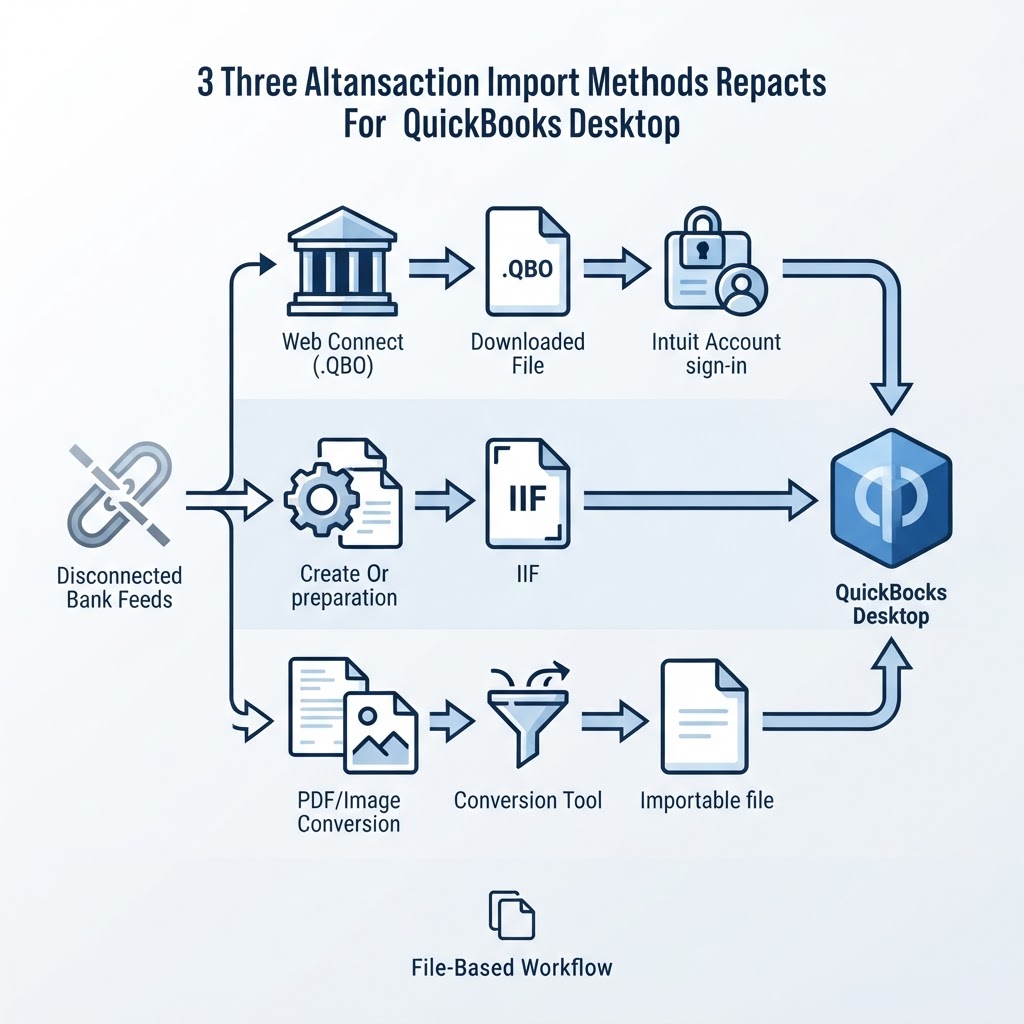
Quick Answer
If your QuickBooks Desktop bank feed has stopped working, you have three realistic options: download a Web Connect (.QBO) file from your bank's website and import it (this still requires signing in to an Intuit Account), build or obtain an Intuit Interchange Format (IIF) file and import it through QuickBooks Desktop, or extract transactions from your PDF/image statements with a conversion tool and bring the resulting file in. The feed itself won't come back once Intuit's service discontinuation policy has retired connected services for your Desktop version — the fix is a file-based workflow, not a settings change.
Understanding the Service Discontinuation Lifecycle
If you opened QuickBooks Desktop this month and found your bank feed grayed out, endlessly prompting for login, or throwing a connection error you've never seen before, you're not looking at a glitch. Intuit discontinues connected services — including bank feeds — for QuickBooks Desktop versions once they pass a fixed age threshold, according to Intuit's published service discontinuation policy. That's a documented policy, not a bug waiting on a patch. Once your version crosses that threshold, the feed is gone for that installation, full stop, unless you move to a currently supported release.
For anyone who built a month-end routine around clicking "Download Transactions" and letting the register populate itself, this changes more than one step. It removes the one part of QuickBooks Desktop that behaved like modern cloud software. Categorization rules, auto-matching, and reconciliation all assumed a steady drip of bank data arriving on its own. When that drip stops, the workflow has to change — not just the software.
The useful question isn't why this happened. It's how to get transactions into the company file now. There are two native paths inside QuickBooks Desktop, and a third that sits outside it entirely.
The Mechanics of Data Import: .QBO vs. IIF
QuickBooks Desktop has historically offered live bank connections through Direct Connect and Express Web Connect. Both depend on an active link between your bank and Intuit's servers, so when connected services are discontinued for a version, that link breaks regardless of which of the two you were using. What remains are file-based imports, and they are not interchangeable.
Web Connect (.QBO) files
A .QBO file is a one-time download from your bank's own website — not a live feed running through QuickBooks. You log into your bank's portal separately, download a date range of transactions as a .QBO file, then bring that file into QuickBooks manually. The detail that trips people up: importing a .QBO file still requires signing in to an Intuit Account from within QuickBooks Desktop, even though the import itself happens offline. If your bank's online banking portal no longer offers a QuickBooks download format, this path isn't available to you.
Intuit Interchange Format (IIF) files
IIF files are tab-delimited text files used to import or export lists and transactions in QuickBooks Desktop, and they do not depend on any live server connection. This makes IIF the more durable option when your bank doesn't offer a .QBO download or when you want to avoid any Intuit Account dependency entirely. The tradeoff is that someone has to build the file correctly — either exporting it from another system in the right layout or constructing it by hand against Intuit's template. QuickBooks will not necessarily warn you if that layout is wrong.
How do I import bank transactions if my QuickBooks bank feed is broken?
Three realistic paths exist. Download a .QBO file directly from your bank's website and import it, with Intuit Account sign-in required. Build or obtain a correctly formatted IIF file and import it through QuickBooks Desktop's file import function. Or extract transaction data from your PDF or image bank statements using a conversion tool, then bring the resulting structured file into QuickBooks.
Which path makes sense depends on what your bank still offers and how much manual handling you can absorb. If your bank's website still generates .QBO downloads, that's usually the more straightforward route, since the transaction data has already been structured for you — you're moving it, not retyping it. If your bank has no download option, or if the only record you have is a PDF or scanned statement, the real choice becomes building an IIF file by hand versus using a statement-conversion tool to produce clean data first.
What happens when QuickBooks Desktop bank feeds stop working?
Once connected services are discontinued, the feed stays discontinued for that software version. Intuit ties the cutoff to the age of the Desktop release itself, not to a setting you can toggle back on. In practice, this shows up as failed downloads, login prompts that never succeed, or a connection error code on screen.
If you've landed on this page searching for the OLSU-1013 error specifically: that code is one of the symptoms many users encounter around the time a connected service is cut off, though the exact wording and trigger can vary by bank and by Desktop version — the evidence available doesn't document a single universal cause for that code. The reliable signal isn't the error code itself; it's whether your Desktop version has crossed the discontinuation threshold described above. If it has, re-entering credentials or reinstalling won't restore the feed. The structural fix is a file-based import, an upgrade to a currently supported version, or a different data path altogether.
Step-by-Step: Preparing and Importing IIF Files
- Back up your company file first. Creating a backup copy of the company file before importing IIF files is essential so you can restore if something goes wrong during import, as Ramp's QuickBooks Desktop file export overview notes. This single step is the cheapest insurance against a bad import.
- Confirm your user permissions. Importing IIF files into QuickBooks Desktop requires Administrator or External Accountant privileges. If you're working on a client file as a bookkeeper, check this before you start, not after the import fails partway through.
- Build or obtain the IIF file. This can come from an export tool that already outputs IIF, or from manually populating Intuit's IIF template with transaction rows (date, amount, account, memo, and the other required headers).
- Run the import inside QuickBooks Desktop using the software's file import function for IIF files.
- Review every imported transaction against your source statement before closing the books for the period. Do not assume a clean-looking import means a correct one.
Illustrative example
This scenario is hypothetical and intended to show the mechanics, not a reported customer outcome. Suppose a bookkeeper is closing October for a small retail client running QuickBooks Desktop Pro, and the bank feed stopped pulling transactions mid-month. The checking account had 42 transactions for the month. The bookkeeper has two realistic choices: type all 42 transactions into an IIF template by hand, checking each date, amount, and payee against the PDF statement, or convert the PDF statement into a CSV with transaction data already separated into date, description, and amount columns, then reformat that CSV into the IIF layout before importing. The second route still requires review, but it removes the manual retyping step where transposition errors most often creep in.
Best Practices for Data Integrity and Error Prevention
- Always back up before importing. This is non-negotiable for IIF imports specifically.
- Don't trust a silent import. IIF imports provide limited error checking, and incorrect formatting can cause data to import incorrectly without triggering any error message at all. A clean-looking import screen is not proof of a correct import.
- Reconcile immediately after import, not at month-end. Catching a formatting problem the same day you imported is far cheaper than finding it during a quarterly review.
- Watch for duplicate postings. If you've attempted an IIF import more than once for the same date range, check the register for repeated transactions before moving on.
- Lock the period once reconciled so a later import attempt can't silently alter closed transactions.
Decision Framework: Manual IIF vs. Third-Party Extraction Tools
Building IIF files by hand and using a statement-extraction tool solve the same problem differently, and the right choice depends on volume, source format, and risk tolerance.
Choose manual IIF building when:
- Transaction volume is low (a handful of transactions per period)
- You already have clean, structured source data (such as an export from another system)
- You're comfortable with the IIF template and willing to review every row by hand
- There's no budget or need for an additional tool
Choose a statement-extraction tool when:
- Your only source is a PDF or scanned image of the bank statement, with no structured export available
- Transaction volume makes manual transcription slow or error-prone
- You need the same process repeated across multiple accounts or multiple clients
- You want built-in checks before the data ever reaches QuickBooks
This is where a tool like Statement Flow fits into the picture. Statement Flow converts bank-statement PDFs and images into structured CSV or JSON data using AI-powered extraction, and it includes validation features — opening and closing balance checks, credit and debit totals, balance variance detection, and flagging of low-confidence transactions — before you export that data toward a supported accounting workflow. It does not file taxes, provide accounting advice, or replace QuickBooks as a ledger; it addresses the specific gap this article is about: getting transaction data out of a statement and into a usable format without retyping it line by line.
Pre-Import Verification Checklist
Whether you're importing an IIF file you built yourself or one generated from converted statement data, run this check before you commit the import to your company file:
- [ ] Company file backed up within the last few minutes, not from last week
- [ ] Logged in with Administrator or External Accountant privileges
- [ ] Date range of the file matches the statement period exactly — no overlap, no gap
- [ ] Opening balance in the file matches the statement's opening balance
- [ ] Closing balance in the file matches the statement's closing balance
- [ ] Transaction count in the file matches the transaction count on the statement
- [ ] No duplicate transactions from a prior failed or partial import attempt
- [ ] Account mapping (which QuickBooks account the transactions post to) confirmed before import, not assumed
- [ ] A test import attempted on a copy of the file first, if this is the first time using this format
Treating this checklist as mandatory, rather than optional, is the practical answer to the limited-error-checking problem described above. QuickBooks won't always tell you something is wrong. You have to check before it has the chance to be wrong inside your books.
Where This Leaves You
The bank feed isn't coming back for a discontinued Desktop version, and no amount of troubleshooting changes that. What you control is how much manual work sits between your bank statement and your company file. For low volume with clean source data, manual IIF building is a reasonable, zero-cost path. For PDF or image statements, higher volume, or recurring work across multiple accounts, extracting the data first — then validating it against the checklist above — reduces the number of places a silent error can hide.
Frequently Asked Questions
How do I import bank transactions if my QuickBooks bank feed is broken?
Download a Web Connect (.QBO) file from your bank's website and import it (this still requires signing in to an Intuit Account), build or obtain an Intuit Interchange Format (IIF) file and import it through QuickBooks Desktop's file import function, or extract the transactions from your PDF or image bank statements with a conversion tool and import the resulting structured file.
What happens when QuickBooks Desktop bank feeds stop working?
Intuit discontinues connected services, including bank feeds, for QuickBooks Desktop versions once they pass a fixed age threshold. Once that happens for your version, the feed does not come back on its own — you need a file-based import or an upgrade to a currently supported version.
What is the OLSU-1013 error in QuickBooks Desktop?
It's a connection error code some users see when a bank feed fails. The exact trigger can vary by bank and version, but when it appears on an older Desktop version, it's often consistent with that version's connected services having been discontinued rather than a temporary outage.
Do I need special permissions to import an IIF file?
Yes. Importing IIF files into QuickBooks Desktop requires Administrator or External Accountant privileges.
Will QuickBooks tell me if my IIF import had an error?
Not reliably. IIF imports provide limited error checking, and incorrect formatting can cause data to import incorrectly without any error message appearing. Reviewing imported transactions against the source statement is necessary regardless of how the import screen looks.
Sources
Related on StatementFlow
This article was produced by StatementFlow's AI-assisted editorial workflow and reviewed against sourced evidence and verified product documentation before publication.