
The Reconciliation Gap: Fixing Manual Data Prep in Business Central
Quick Answer
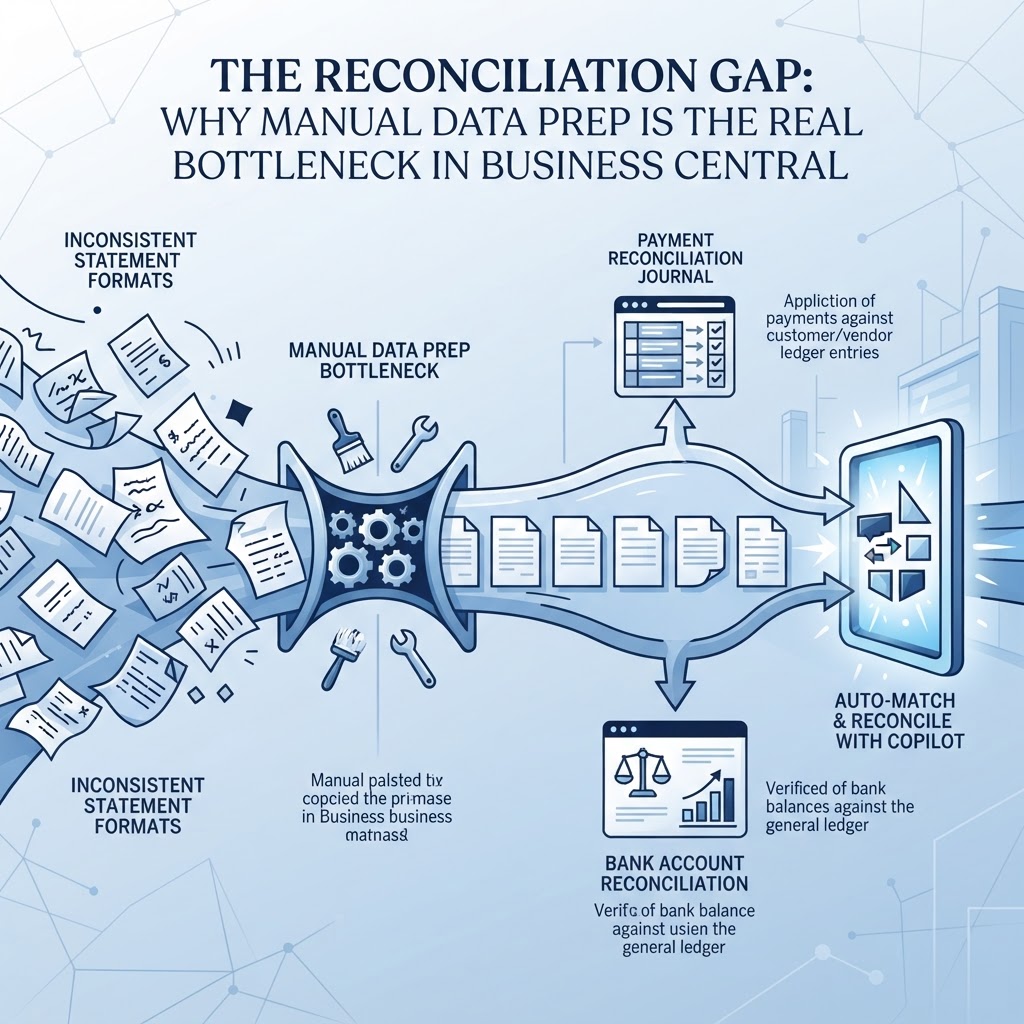
Most reconciliation mismatches in Business Central come from inconsistent statement formats, not from the matching engine. Use the Payment Reconciliation Journal when your priority is applying payments against open customer or vendor ledger entries, and use the Bank Account Reconciliation page when you need to verify the bank balance against your G/L. Both depend on clean CSV or CAMT imports, so standardizing the statement data before it reaches Business Central removes most manual rework. Auto-Match and the Reconcile with Copilot feature then handle the bulk of line-matching once the data is clean.
The Reconciliation Bottleneck: Why Manual Entry Fails
It's the last week of the month, and you're staring at two screens. On one, a bank statement with 180 transaction lines in a format your bank changed without telling you. On the other, Business Central's ledger entries, posted in a different order, with descriptions that don't match what the bank wrote down. You start matching line by line, and an hour in, you've reconciled maybe a third of the statement.
This isn't really a Business Central problem — it's a data problem that becomes a Business Central problem. Bank statements arrive as PDFs, CSVs with inconsistent delimiters, or CAMT XML files, and each source bank formats dates, amounts, and references differently. When that raw data hits your ERP without standardization, reconciliation tools that are otherwise capable can't do their job. Auto-match logic depends on clean dates, consistent sign conventions, and parseable amounts. If the input is messy, the matching engine has nothing reliable to compare against, and you're back to manual line-by-line verification.
The fix isn't simply "use the reconciliation feature" — it's choosing the right tool for your transaction volume and bank integration capability, then feeding that tool standardized data. That's the gap this guide addresses.
Two Paths in Business Central: Payment Reconciliation Journal vs. Bank Account Reconciliation
Business Central gives you two distinct ways to reconcile bank activity, and conflating them is a common source of confusion.
The Payment Reconciliation Journal is built around automatic payment application. It matches bank statement lines against open customer, vendor, and bank account ledger entries, applying payments to the invoices they settle as part of the process (Microsoft Learn). This journal is the right tool when your primary goal is clearing open receivables and payables, not just confirming a balance.
The Bank Account Reconciliation page works differently. It's used to compare your Bank Account Ledger Entries and the resulting G/L balance against an external bank statement, line by line, until the Statement Ending Balance matches your book balance (Microsoft Learn). It doesn't apply payments to invoices; it confirms that what's in your ledger actually happened at the bank.
Why This Distinction Matters
If you use the Bank Account Reconciliation page expecting it to clear your receivables, you'll find unapplied customer payments still sitting open. If you use the Payment Reconciliation Journal expecting a clean side-by-side balance comparison, you'll find it's optimized for application, not for statement presentation. Each tool solves a different problem, and most finance teams end up needing both at different points in the month, often for different bank accounts.
The Decision Tree: Which Tool Should You Use?
Transaction volume and bank integration capability are the two variables that should drive this choice. Here's a practical way to work through it.
Step 1 — Do you have an automated bank feed, or are you importing files manually?
- If your bank connects through an automated feed service, continue to Step 2.
- If you're importing CSV or CAMT files manually, skip to Step 3.
Step 2 — Is your monthly volume dominated by customer or vendor payments that need to be applied to open invoices?
- If yes, and volume is high (illustrative threshold: more than roughly 100 payment lines a month), use the Payment Reconciliation Journal. Automatic application against open ledger entries does the heavy lifting (Microsoft Learn).
- If no, and you mainly need to confirm the bank balance against the G/L, use the Bank Account Reconciliation page instead.
Step 3 — Can your bank export a CAMT (ISO 20022) file?
- If yes, import the CAMT file directly into Bank Account Reconciliation. Business Central supports native CAMT import, which avoids manual column mapping (d365training.com).
- If no, you're working with CSV. Configure a custom CSV format (covered below) and import through the same page.
Step 4 — After the first pass of matching, do you still have lines that need to be split across multiple invoices?
- If yes, use the Reconcile with Copilot feature, which can match a single bank statement line against multiple invoice ledger entries (Microsoft Learn).
- If no, proceed to posting.
This isn't a one-time decision. A business might use the Payment Reconciliation Journal for its operating account, where customer payments dominate, and the Bank Account Reconciliation page for a payroll or disbursement account where the goal is pure balance verification.
Configuring Automated Imports: Setting Up Bank Statement Formats
Both tools depend on getting a clean file into Business Central in the first place. Business Central accepts bank statements in .csv or other formats, and some banks support feed services such as Envestnet Yodlee for more direct automation (Microsoft Learn).
CSV Configuration
When importing CSV, you're mapping bank-specific columns (date, description, amount, reference) to Business Central's expected fields through a Data Exchange Definition. Get this wrong and the matching engine fails silently — not with an error, but with a pile of unmatched lines.
Illustrative example: Suppose a bank exports statements with a semicolon delimiter, dates in DD/MM/YYYY format, and debits shown as positive numbers in a separate column from credits. If the Data Exchange Definition assumes a comma delimiter and a single signed amount column, every transaction either fails to parse or imports with the wrong sign. The result looks like a reconciliation variance, but it's actually a mapping error. The fix is correcting the column definition before the next import, not chasing phantom discrepancies in the ledger.
CAMT Configuration
CAMT files (XML-based, ISO 20022) carry structured, standardized fields for date, amount, and reference, which is why Business Central supports importing them natively for bank reconciliation (d365training.com). If your bank offers CAMT export, it generally requires less manual configuration than CSV mapping, because the field structure is predictable across banks that follow the standard.
Matching Strategies: Leveraging Auto-Match and Copilot
Once a statement is imported cleanly, Business Central's Auto-Match logic compares statement lines against open ledger entries by amount, date, and available reference data. This is the same mechanism behind automatic payment application — bank statement lines matched against open customer, vendor, and bank account ledger entries (Microsoft Learn).
For lines that don't match cleanly — a single bank deposit representing three separate customer invoice payments, for instance — the Reconcile with Copilot feature, currently in preview, is designed to handle that complexity by matching one statement line against multiple invoice ledger entries (Microsoft Learn). This matters because a strict one-to-one matching rule will always leave consolidated deposits unmatched, and those lines are exactly what consumes the most manual review time at month-end.
Handling Exceptions: Managing Unmatched Lines and Period-End Adjustments
Even with clean imports and good matching, some lines won't resolve automatically. A few categories show up repeatedly:
- Timing differences. A check written on the 28th might not clear the bank until the following month. This creates a temporary variance between your Statement Ending Balance and your G/L balance that resolves itself once the item clears — it's a timing gap, not an error.
- Bank fees or interest not yet recorded. These appear on the statement before they're posted in Business Central. Post them during reconciliation so the ledger catches up.
- Reference mismatches. A payment reference typed differently by the bank than by your AR team won't auto-match even though the amount and date line up. These need a quick manual match.
Correcting a Posted Mistake
If you post a bank reconciliation and later discover an error — a line matched to the wrong entry, for example — Business Central provides an Undo action on the Bank Account Statement List page, which reverts the posted entries back to Open status so you can rework them (Microsoft Learn). Knowing this before month-end close matters, because discovering an error after posting doesn't mean starting the whole reconciliation over.
Common Pitfalls: Duplicate Imports and Unposted Differences
Two mistakes account for a disproportionate share of reconciliation rework:
- Duplicate imports. Re-importing a statement that overlaps a previously imported date range creates duplicate Bank Account Ledger Entries. Before importing, always confirm the last statement date already processed for that account, and import only the new range.
- Unposted differences carried forward. Leaving a non-zero amount in the reconciliation's "Difference" field and posting anyway hides a real discrepancy inside what looks like a completed reconciliation. That gap doesn't disappear — it resurfaces, usually at year-end, when it's harder to trace back to its source transaction.
A smaller but recurring pitfall: mixing reconciliation tools inconsistently across periods. If January used the Payment Reconciliation Journal and February used the Bank Account Reconciliation page for the same account with no documented reason, troubleshooting a discrepancy months later becomes guesswork. Pick a tool per account per the decision tree above, and stay consistent.
A Practical Month-End Checklist
- Confirm the last successfully reconciled statement date for each bank account before importing anything new.
- Verify the Data Exchange Definition or CAMT mapping matches the bank's current export format — banks change formats without much notice.
- Run Auto-Match first, then review unmatched lines individually rather than forcing matches.
- Use Reconcile with Copilot for consolidated deposits that represent multiple invoices.
- Investigate and clear any non-zero Difference before posting.
- Document which tool (Payment Reconciliation Journal or Bank Account Reconciliation) was used for each account, for consistency across periods.
Where Statement Flow Fits Into the Workflow
Most of the friction described above traces back to one root cause: bank statements don't arrive in a clean, consistent shape. A bank might send a PDF this month and a CSV next month, or change its column order without warning. Business Central's matching tools are only as good as the data they receive.
Statement Flow converts bank-statement PDFs and images into structured CSV or JSON data using AI-powered extraction, and can export that structured data into supported accounting workflows (Platform Overview). For reconciliation specifically, that means a PDF statement from any bank can be turned into a consistent CSV before it ever reaches Business Central's Data Exchange Definition, removing the format-guessing step described above (Bank Statement Reconciliation). The platform includes validation checks — opening and closing balance verification, credit and debit totals, and low-confidence transaction flagging — which catch extraction issues before they turn into reconciliation variances (Bank Statement OCR). Extracted data can be downloaded as Excel/CSV (Excel Export), and accounting teams handling multiple client statements can review a workflow structured around similar engagements (For Accounting Firms).
Statement Flow doesn't replace Business Central's reconciliation logic, and it isn't a bookkeeping ledger system. What it does is standardize the input before it reaches your ERP, which is the step most reconciliation failures actually originate from.
Frequently Asked Questions
How do I stop manual reconciliation in Business Central?
You can't eliminate manual review entirely, but you reduce it substantially by standardizing statement formats before import, choosing the correct tool for your transaction volume (Payment Reconciliation Journal vs. Bank Account Reconciliation), and using Auto-Match plus the Reconcile with Copilot feature for lines that match multiple invoices (Microsoft Learn: https://learn.microsoft.com/en-us/dynamics365/business-central/faqs-bank-reconciliation). Standardizing the source data — for example, converting bank statement PDFs into consistent CSV or JSON before import — removes most of the format-related failures that force manual line matching.
Why doesn't my bank statement match my ERP data?
Mismatches usually come from one of four sources: timing differences (checks or deposits not yet cleared), a CSV mapping error (wrong delimiter, date format, or sign convention), reference text that differs between the bank and your AR/AP records and therefore fails auto-match, or a duplicate import that created extra ledger entries. Check the Data Exchange Definition mapping first, since it's the most common silent cause of an apparent balance discrepancy.
What is the difference between the Payment Reconciliation Journal and the Bank Account Reconciliation page?
The Payment Reconciliation Journal automatically applies bank statement lines against open customer, vendor, and bank account ledger entries, clearing invoices as part of the process (Microsoft Learn: https://learn.microsoft.com/en-us/dynamics365/business-central/receivables-how-reconcile-payments-auto-application). The Bank Account Reconciliation page instead compares your bank account's ledger entries and balance against an external statement to confirm the G/L matches the bank, without applying payments to invoices (Microsoft Learn: https://learn.microsoft.com/en-nz/dynamics365/business-central/bank-how-reconcile-bank-accounts-separately).
How do I configure custom CSV formats for bank imports?
You create or edit a Data Exchange Definition that maps your bank's specific columns (date, description, amount, reference) to the fields Business Central expects, confirming the correct delimiter, date format, and sign convention for debits and credits. Test the mapping against a small sample file before running a full import. If your bank can export CAMT files instead, use that natively supported format to avoid manual column mapping altogether (d365training.com: https://www.d365training.com/post/how-bank-reconciliation-works-in-business-central).
Sources
- Reconcile payments using automatic application - Business Central | Microsoft Learn — Microsoft
- Reconcile bank accounts - Business Central | Microsoft Learn — Microsoft
- Bank Reconciliation in Business Central: How It Works — d365training.com
- FAQ for bank account reconciliation assist with Copilot (preview) - Business Central | Microsoft Learn — Microsoft
- Compliance with the bookkeeping act in Denmark - Business Central | Microsoft Learn — Microsoft
Related on StatementFlow
This article was produced by StatementFlow's AI-assisted editorial workflow and reviewed against sourced evidence and verified product documentation before publication.